VerseGrip 위치 제어 튜토리얼
이 튜토리얼에서는 VerseGrip의 회전 기능을 활용하여 ‘ Inverse3 ’ 기기의 커서 위치를 직접 제어하는 방법을 시연하며, 동시에 Unity 메인 스레드를 우회하여 고주파수 업데이트를 구현하는 방법을 설명합니다.
소개
와 입문 가이드 앞서 설명한 방법(이 방법은 표준 업데이트 주파수인 60Hz로 작동함)과는 달리, 이 튜토리얼은 VerseGrip 장치의 회전에 따라 더 높은 주파수(1~4kHz)로 Inverse3 커서의 위치를 동적으로 조정하는 것을 목표로 합니다.
이는 탭틱 스레드에 의해 트리거되는 DeviceStateChanged 이벤트를 통해 구현됩니다.
장면 설정
먼저 Haptic Rig를 생성합니다:GameObject > Haply > Haptic Rig (one hand). 구체적인 단계는 입문 가이드를참조하십시오.
VerseGripPositionControl 컴포넌트
이름을 VerseGripPositionControl.cs 새로운 C# 스크립트를 작성하고 이를 다음 파일에 첨부합니다. 햅틱 오리진 게임 오브젝트에서.
에서 VerseGripPositionControl 이 클래스에는 다음과 같은 속성이 정의되어 있습니다:
public Inverse3 inverse3;
public VerseGrip verseGrip;

[Range(0, 1)]
public float speed = 0.5f;

[Range(0, 0.2f)]
public float movementLimitRadius = 0.2f;

private Vector3 _targetPosition;
- inverse3: Inverse3 기기에 대한 참조는 Inspector를 통해 설정합니다.
- verseGrip: 커서 제어를 위한 VerseGrip 장치를 참조합니다.
- 속도: 커서의 이동 속도.
- movementLimitRadius: 커서가 초기 위치에서 이동할 수 있는 최대 거리.
- _targetPosition: 커서가 향하고 있는 대상 위치.
Awake 메서드
에서 Awake 방법 중, 등록 Ready 이벤트를 통해 Inverse3 장치의 작업 공간 중심을 기준으로 커서의 목표 위치를 초기화합니다:
private void Awake()
{
    inverse3.Ready.AddListener((inverse3Controller, args) =>
    {
        _targetPosition = inverse3Controller.WorkspaceCenterLocalPosition;
    });
}
장비가 준비되기 전에는 왼손/오른손 설정이 확정되지 않았기 때문에 작업 공간의 중심을 파악할 수 없습니다.
구현 OnDeviceStateChanged VerseGrip의 회전 및 버튼 입력을 기반으로 커서의 목표 위치를 계산하는 방법:
private void OnDeviceStateChanged(object sender, VerseGripEventArgs args)
{
    var verseGrip = args.DeviceController;
    // Calculate the direction based on the VerseGrip's rotation
    var direction = verseGrip.Orientation * Vector3.forward;

    // Check if the VerseGrip button is pressed down
    if (verseGrip.GetButtonDown())
    {
        // Initialize target position
        _targetPosition = inverse3.CursorLocalPosition;
    }

    // Check if the VerseGrip button is being held down
    if (verseGrip.GetButton())
    {
        // Move the target position toward the grip direction
        _targetPosition += direction * (0.0001f * speed);

        // Clamp the target position within the movement limit radius
        var workspaceCenter = inverse3.WorkspaceCenterLocalPosition;
        _targetPosition = Vector3.ClampMagnitude(_targetPosition - workspaceCenter, movementLimitRadius)
            + workspaceCenter;
    }
    // Move cursor to new position
    inverse3.SetCursorLocalPosition(_targetPosition);
}
에서 OnEnable 와 OnDisable 등록 및 해지 DeviceStateChanged 사건.
/// Subscribes to the DeviceStateChanged event.
private void OnEnable()
{
    verseGrip.DeviceStateChanged += OnDeviceStateChanged;
}

/// Unsubscribes from the DeviceStateChanged event.
private void OnDisable()
{
    verseGrip.DeviceStateChanged -= OnDeviceStateChanged;
}
게임 플레이
- Inverse3 장치를 단단히 고정하고, 장치가 움직일 수 있는 충분한 공간이 확보되도록 하십시오.
- 재생 모드(Play Mode)로 전환한 후, ‘ Inverse3 ’ 커서를 길게 누르십시오.
- VerseGrip을 회전시키면 Unity 씬에서 커서의 움직임을 관찰할 수 있으며, 이는 VerseGrip의 방향과 직접적으로 일치합니다.
- VerseGrip의 버튼을 누르면 Inverse3 커서가 VerseGrip이 회전하는 방향으로 이동하며, 실시간 제어 효과를 보여줍니다.
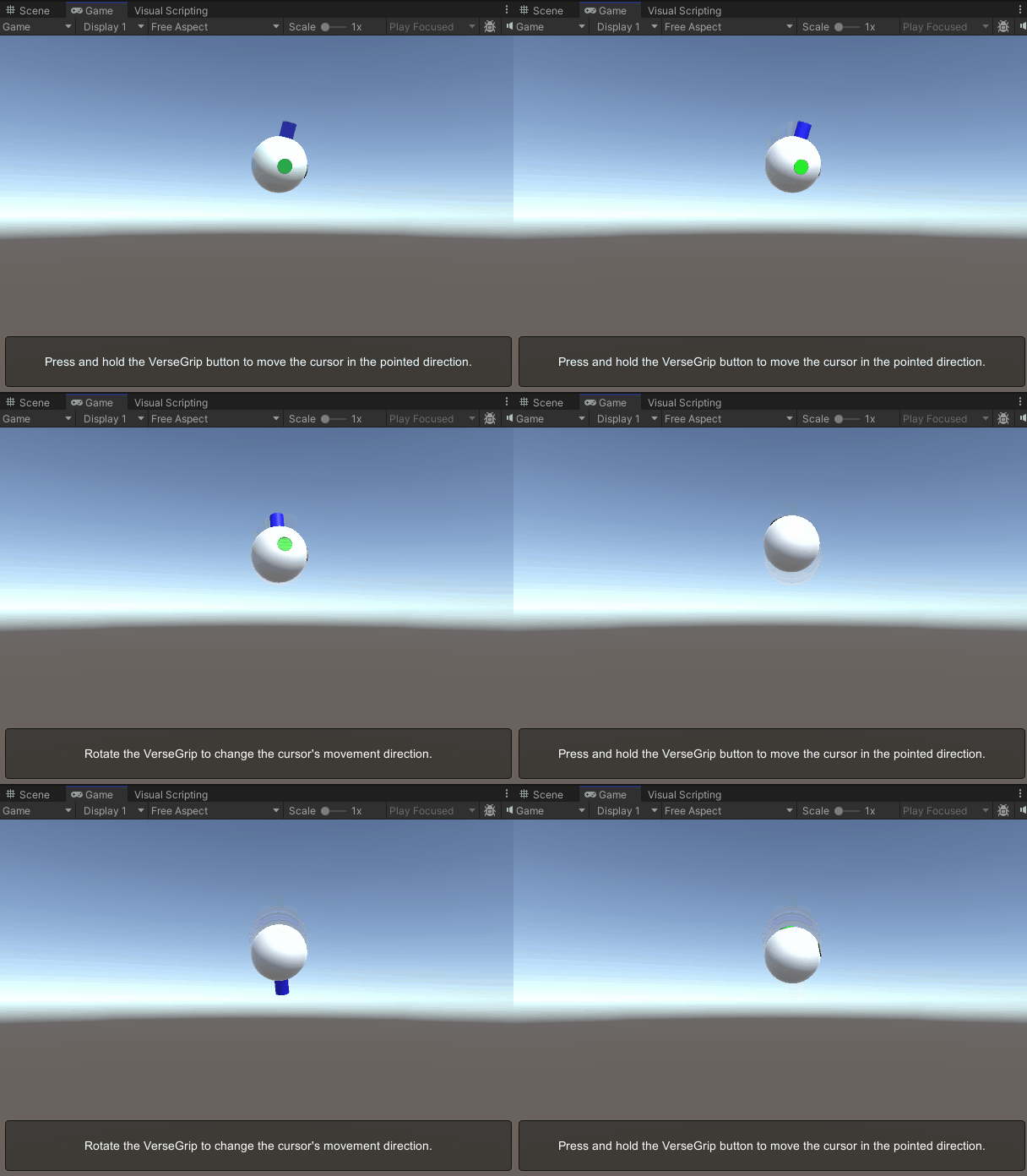
이 그림은 커서 모델을보여주고 있으며, 명확하게 식별할 수 있도록 전방 축이 강조 표시되어 있습니다. 커서 모델 사용자 정의에 대한 자세한 내용은 커서 문서를참조하십시오.
원본 파일
이 예제에서 사용되는 최종 씬과 모든 관련 파일은 Unity 패키지 관리자의 ‘Tutorials’ 예제에서 가져올 수 있습니다.
VerseGripPositionControl.cs
/*
 * Copyright 2024 Haply Robotics Inc. All rights reserved.
 */

using Haply.Inverse.DeviceControllers;
using Haply.Inverse.DeviceData;
using UnityEngine;

namespace Haply.Samples.Tutorials._6_VerseGripPositionControl
{
    /// <summary>
    /// Demonstrates how to control the device cursor position using the VerseGrip.
    /// </summary>
    public class VerseGripPositionControl : MonoBehaviour
    {
        public Inverse3Controller inverse3;
        public VerseGripController verseGrip;

        [Tooltip("Cursor moving speed")]
        [Range(0, 1)]
        public float speed = 0.5f;

        [Tooltip("Maximum radius for cursor movement")]
        [Range(0, 0.1f)]
        public float movementLimitRadius = 0.075f;

        private Vector3 _targetPosition; // Target position for the cursor

        private void Awake()
        {
            inverse3.Ready.AddListener((inverse3Controller, args) =>
            {
                _targetPosition = inverse3Controller.WorkspaceCenterLocalPosition;
            });
        }

        /// <summary>
        /// Subscribes to the DeviceStateChanged event.
        /// </summary>
        private void OnEnable()
        {
            verseGrip.DeviceStateChanged += OnDeviceStateChanged;
        }

        /// <summary>
        /// Unsubscribes from the DeviceStateChanged event.
        /// </summary>
        private void OnDisable()
        {
            verseGrip.DeviceStateChanged -= OnDeviceStateChanged;
            inverse3.Release();
        }

        private void OnDeviceStateChanged(object sender, VerseGripEventArgs args)
        {
            var verseGrip = args.DeviceController;
            // Calculate the direction based on the VerseGrip's rotation
            var direction = verseGrip.Orientation * Vector3.forward;

            // Check if the VerseGrip button is pressed down
            if (verseGrip.GetButtonDown())
            {
                // Initialize target position
                _targetPosition = inverse3.CursorLocalPosition;
            }

            // Check if the VerseGrip button is being held down
            if (verseGrip.GetButton())
            {
                // Move the target position toward the grip direction
                _targetPosition += direction * (0.0001f * speed);

                // Clamp the target position within the movement limit radius
                var workspaceCenter = inverse3.WorkspaceCenterLocalPosition;
                _targetPosition = Vector3.ClampMagnitude(_targetPosition - workspaceCenter, movementLimitRadius)
                    + workspaceCenter;
            }
            // Move cursor to new position
            inverse3.SetCursorLocalPosition(_targetPosition);
        }
    }
}