간단한 위치 제어 튜토리얼
이 튜토리얼에서는 ‘입문 가이드’에서 소개된 개념을 바탕으로, Unity 씬에서 동적 게임 오브젝트를 활용하여 ‘ Inverse3 ’ 기기의 커서 위치를 제어하는 방법을 보여줍니다.
소개
Inverse3 이 장비는 두 가지 제어 모드를 지원합니다:힘 제어와위치 제어。
전자는 커서 위치에 따라 힘의 크기를 조절하는 반면, 후자는 커서의 위치를 직접 조작합니다.
이 튜토리얼에서는 동적 환경에서의 힘 피드백 튜토리얼 ...의 장면 설정은 특히 FixedUpdate 방법에서 사용 CursorSetPosition, 이를 통해 장비 커서가 이동하는 게임 오브젝트를 따라갈 수 있게 합니다.
장면 설정
먼저 다음 지침에 따라 동적 환경에서의 힘 피드백 튜토리얼 앞서 언급된 장면 구성을 설정합니다. 여기에는 다음이 포함됩니다. 햅틱 리그 그리고 ~에 의해 MovableObject 구성 요소 제어형 움직이는 공 게임 오브젝트.
SpherePositionControl 컴포넌트 구현
将 움직이는 공 게임 오브젝트에 대한 SphereForceFeedback 구성 요소를 다음과 같은 이름의 것으로 교체합니다. SpherePositionControl.cs 새로운 C# 스크립트.
에서 SpherePositionControl 이 클래스에는 다음과 같은 속성이 정의되어 있습니다:
public Inverse3 inverse3;
public float minSyncDistance = 0.05f;
private bool _isCursorSynchronized;
- inverse3: Inverse3 장치 구성 요소에 대한 참조는 Inspector를 통해 설정합니다.
- minSyncDistance: 커서 동기화를 시작하는 데 필요한 최소 거리 임계값.
- _isCursorSynchronized: 플래그로, 커서의 이동이 Moving Ball 과 동기화되어 있는지 여부를 나타냅니다.
동기 논리
'Moving Ball'과의 근접 정도에 따라 커서 동기화를 시작하거나 중지하는 방법을 구현하는 방법:
private void StartSynchronizeCursor()
{
    var cursorPosition = inverse3.Cursor.transform.position;
    GetComponent<MovableObject>().SetTargetPosition(cursorPosition, teleport: true);
    _isCursorSynchronized = true;
}

private void StopSynchronizeCursor()
{
    _isCursorSynchronized = !inverse3.Release();
}
여기서는
MovableObject.SetTargetPosition(position, teleport:true),그러면 그것은 무빙볼 커서 위치로 순간 이동합니다.
Update 및 FixedUpdate 메서드
에서 Update 이 방법에서는 커서와 움직이는 공 거리 전환 시 커서 동기화 상태:
private void Update()
{
    var distance = Vector3.Distance(inverse3.CursorPosition, transform.position);
    if (!_isCursorSynchronized && distance <= minSyncDistance)
    {
        StartSynchronizeCursor();
    }
    else if (_isCursorSynchronized && distance > minSyncDistance)
    {
        StopSynchronizeCursor();
    }
}
에서 FixedUpdate 이때, 동기화가 활성화된 상태라면 커서 위치를 다음과 같이 업데이트합니다. 움직이는 공 일관성 유지:
private void FixedUpdate()
{
    if (_isCursorSynchronized)
    {
        inverse3.SetCursorPosition(transform.position);
    }
}
FixedUpdate 메서드를 사용하면 그래픽 렌더링 성능의 영향을 받지 않고 위치 제어가 안정적인 프레임 속도로 실행되도록 할 수 있습니다.
초기화
에서 Awake() 이 과정에서, 왼손 또는 오른손 설정에 관계없이 반드시 다음을 확인해야 합니다. 움직이는 공 시작 위치는 Inverse3 장치에서 접근 가능한 범위 내에 있습니다:
private void Awake()
{
    inverse3.Ready.AddListener(device =>
    {
        GetComponent<MovableObject>().SetTargetPosition(((Inverse3)device).WorkspaceCenterLocalPosition, teleport: true);
    });
}
게임 체험
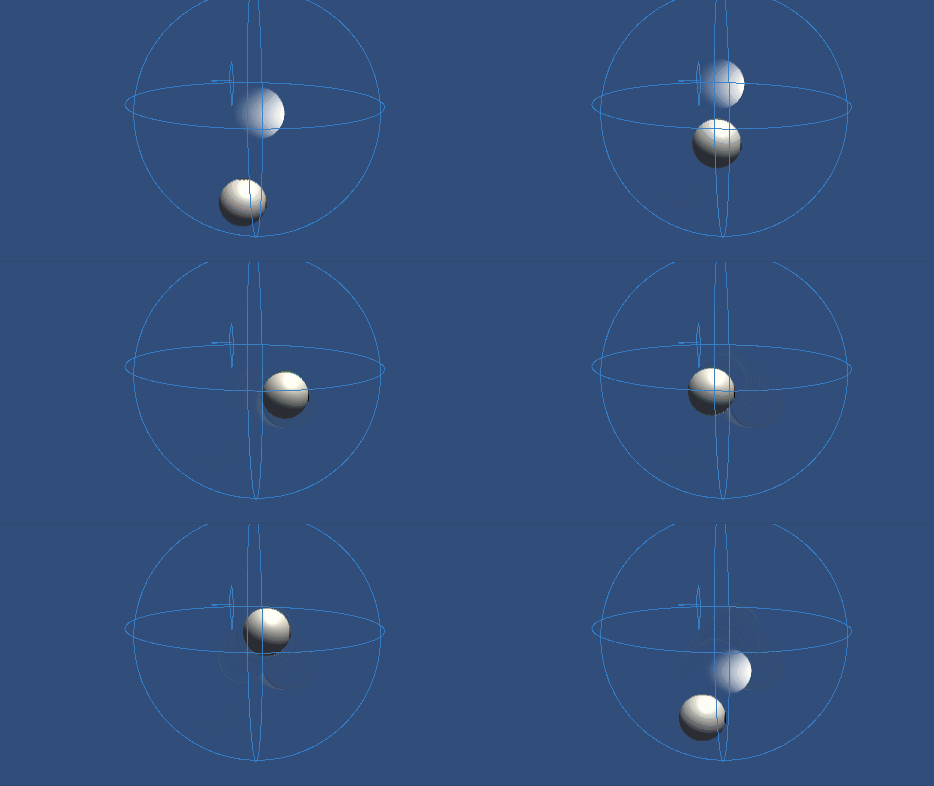
Inverse3 장치를 단단히 고정하고 주변에 충분한 공간이 확보되도록 하십시오. 재생 모드(Play Mode)를 활성화한 후 커서를 Moving Ball근처로 이동시키면,Inverse3 가 Moving Ball의 움직임을 따라갑니다. 키보드를 사용하여 Moving Ball을이동시켜, 커서가 그 위치를 추적하는 기능을 확인할 수 있습니다.
원본 파일
이 튜토리얼의 전체 씬과 관련 파일은 Unity Package Manager의 튜토리얼 예제에서 찾을 수 있습니다.
여기에는 다음이 포함되어 있습니다. MovableObject 스크립트. 이 스크립트는 여러 예제에서 키보드 입력을 통해 게임 오브젝트의 이동을 제어하는 데 사용됩니다.
SpherePositionControl.cs
/*
 * Copyright 2024 Haply Robotics Inc. All rights reserved.
 */

using Haply.Inverse.DeviceControllers;
using Haply.Samples.Tutorials.Utils;
using UnityEngine;

namespace Haply.Samples.Tutorials._5_SimplePositionControl
{
    /// <summary>
    /// Controls the Inverse3 cursor position based on the current position of this GameObject.
    /// When the GameObject is within a specified distance from the cursor, it initiates synchronized control,
    /// allowing the cursor to follow the GameObject's movements.
    /// </summary>
    [RequireComponent(typeof(MovableObject))]
    public class SpherePositionControl : MonoBehaviour
    {
        public Inverse3Controller inverse3;

        [Tooltip("Minimum distance required to initiate synchronized control between this GameObject and the Inverse3 cursor.")]
        [Range(0, 1)]
        public float minSyncDistance = 0.05f;

        private bool _isCursorSynchronized;

        private void Awake()
        {
            // Ensure inverse3 is set, finding it in the scene if necessary.
            inverse3 ??= FindFirstObjectByType<Inverse3Controller>();

            // When inverse3 is ready, so the handedness is defined
            inverse3.Ready.AddListener((device, args) =>
            {
                // Teleport the sphere to its workspace center to ensure it can be reached,
                // regardless of whether the device is left or right-handed. This ensures the GameObject starts in a
                // position that is accessible by the Inverse3 device.
                GetComponent<MovableObject>().SetTargetPosition(device.WorkspaceCenterLocalPosition, teleport:true);
            });
        }

        private void OnDisable()
        {
            // Ensure movement synchronization is disabled when the component is disabled.
            StopSynchronizeCursor();
            inverse3.Release();
        }

        private void Update()
        {
            if (!inverse3.IsReady)
            {
                return;
            }
            // Calculate the distance between the Inverse3 position and this object's position.
            var distance = Vector3.Distance(inverse3.CursorPosition, transform.position);

            // Enable synchronized movement if within the minimum sync distance and not already synced.
            if (!_isCursorSynchronized && distance <= minSyncDistance)
            {
                StartSynchronizeCursor();
            }
            // Disable synchronized movement if outside the minimum sync distance and currently synced.
            else if (_isCursorSynchronized && distance > minSyncDistance)
            {
                StopSynchronizeCursor();
            }
        }

        private void FixedUpdate()
        {
            if (_isCursorSynchronized)
            {
                // If in sync, set the Inverse3 cursor position to this object's position.
                inverse3.SetCursorPosition(transform.position);
            }
            else
            {
                inverse3.ProbeCursorPosition(true);
            }
        }

        private void StartSynchronizeCursor()
        {
            // Get the current cursor position.
            var cursorPosition = inverse3.Cursor.transform.position;

            // Teleport this object to the cursor position to avoid a sudden jump when position control starts.
            GetComponent<MovableObject>().SetTargetPosition(cursorPosition, teleport:true);

            // Start synchronizing the movement of this object with the cursor.
            _isCursorSynchronized = true;
        }

        private void StopSynchronizeCursor()
        {
            // Stop synchronizing the movement.
            _isCursorSynchronized = !inverse3.Release();
        }
    }
}