기본 힘 피드백 튜토리얼
이 튜토리얼에서는 정적 물체(예: 공)와 접촉할 때의 물리적 특성을 시뮬레이션하기 위해 강성과 감쇠를 포함한 기본적인 촉각 시뮬레이션을 만드는 방법을 안내합니다. 이 튜토리얼을 마치면, 공의 존재를 감지하고 강성 및 감쇠 속성을 조정하여 다양한 촉각 경험을 얻을 수 있는 시뮬레이션 프로그램을 완성하게 됩니다.
소개
이 튜토리얼의 핵심 과제는 강성과 감쇠를 모두 갖는 구체와 접촉할 때 발생하는 힘을 계산하는 함수를 개발하는 것입니다. 이 맥락에서 강성은 스프링과 유사한 역할을 하며, 압축이 심할수록 발생하는 힘도 커집니다. 반면, 감쇠는 물체의 운동에 대한 저항을 나타내며, 물체가 빠르게 움직일수록 받는 저항도 커집니다.
장면 설정
먼저, 다음을 따라 입문 가이드 설명에 따라 Haptic Rig를 설정하고, 다음 사항을 확인하십시오. 햅틱 오리진 위치, 회전 및 확대/축소 값을 각각 다음과 같이 설정합니다. (0, 0, 0) 와 (1, 1, 1)。
그런 다음, 이름이 Sphere 구체를 선택하고 다음 속성을 설정합니다:
- 위치:
(0, 0, -0.1)(장치 앞쪽에서 약 10cm 떨어진 곳) - 확대/축소:
(0.2, 0.2, 0.2)(지름 20cm의 구에 해당)
힘 피드백 스크립트
~을 위해 구체 게임 오브젝트에 새로운 C# 스크립트를 추가하고, 이름을 SphereForceFeedback.cs。
이 스크립트는 구와 접촉할 때 강성과 감쇠를 고려하여 Inverse3 커서에 가해지는 힘을 계산합니다.
다음 속성을 사용하여 스크립트를 초기화하십시오:
[SerializeField]
private Inverse3 inverse3;

[Range(0, 800)]
public float stiffness = 300f;
[Range(0, 3)]
public float damping = 1f;

private Vector3 _ballPosition;
private float _ballRadius;
private float _cursorRadius;
커서가 구체를 관통할 때에만 힘 계산을 수행하여, 특정 강성과 감쇠 특성을 가진 실물 물체를 만졌을 때의 감각을 시뮬레이션해야 합니다.
ForceCalculation 이 계산은 커서의 위치와 속도를 모두 고려하여 다음과 같은 방법으로 수행됩니다:
private Vector3 ForceCalculation(Vector3 cursorPosition, Vector3 cursorVelocity, float cursorRadius,
    Vector3 otherPosition, float otherRadius)
{
    var force = Vector3.zero;

    var distanceVector = cursorPosition - otherPosition;
    var distance = distanceVector.magnitude;
    var penetration = otherRadius + cursorRadius - distance;

    if (penetration > 0)
    {
        // Normalize the distance vector to get the direction of the force
        var normal = distanceVector.normalized;

        // Calculate the force based on penetration
        force = normal * penetration * stiffness;

        // Apply damping based on the cursor velocity
        force -= cursorVelocity * damping;
    }

    return force;
}

private void OnDeviceStateChanged(object sender, Inverse3EventArgs args)
{
    var inverse3 = args.DeviceController;
    // Calculate the ball force
    var force = ForceCalculation(inverse3.CursorLocalPosition, inverse3.CursorLocalVelocity,
        _cursorRadius, _ballPosition, _ballRadius);

    inverse3.SetCursorLocalForce(force);
}
에서 Awake 메서드에서, 초기화 _ballPosition、_ballRadius 와 _cursorRadius,장면 데이터를 설정하려면:
private void SaveSceneData()
{
    var t = transform;
    _ballPosition = t.position;
    _ballRadius = t.lossyScale.x / 2f;

    _cursorRadius = inverse3.Cursor.Radius;
}

private void Awake()
{
    SaveSceneData();
}
다음 위치에서 각각 다음을 확인하십시오. OnEnable 와 OnDisable 메서드 내 등록 및 등록 해제 OnDeviceStateChanged 인터랙션 과정에서 힘 피드백을 올바르게 처리하기 위해 콜백을 호출합니다:
protected void OnEnable()
{
    inverse3.DeviceStateChanged += OnDeviceStateChanged;
}

protected void OnDisable()
{
    inverse3.DeviceStateChanged -= OnDeviceStateChanged;
}
게임 체험
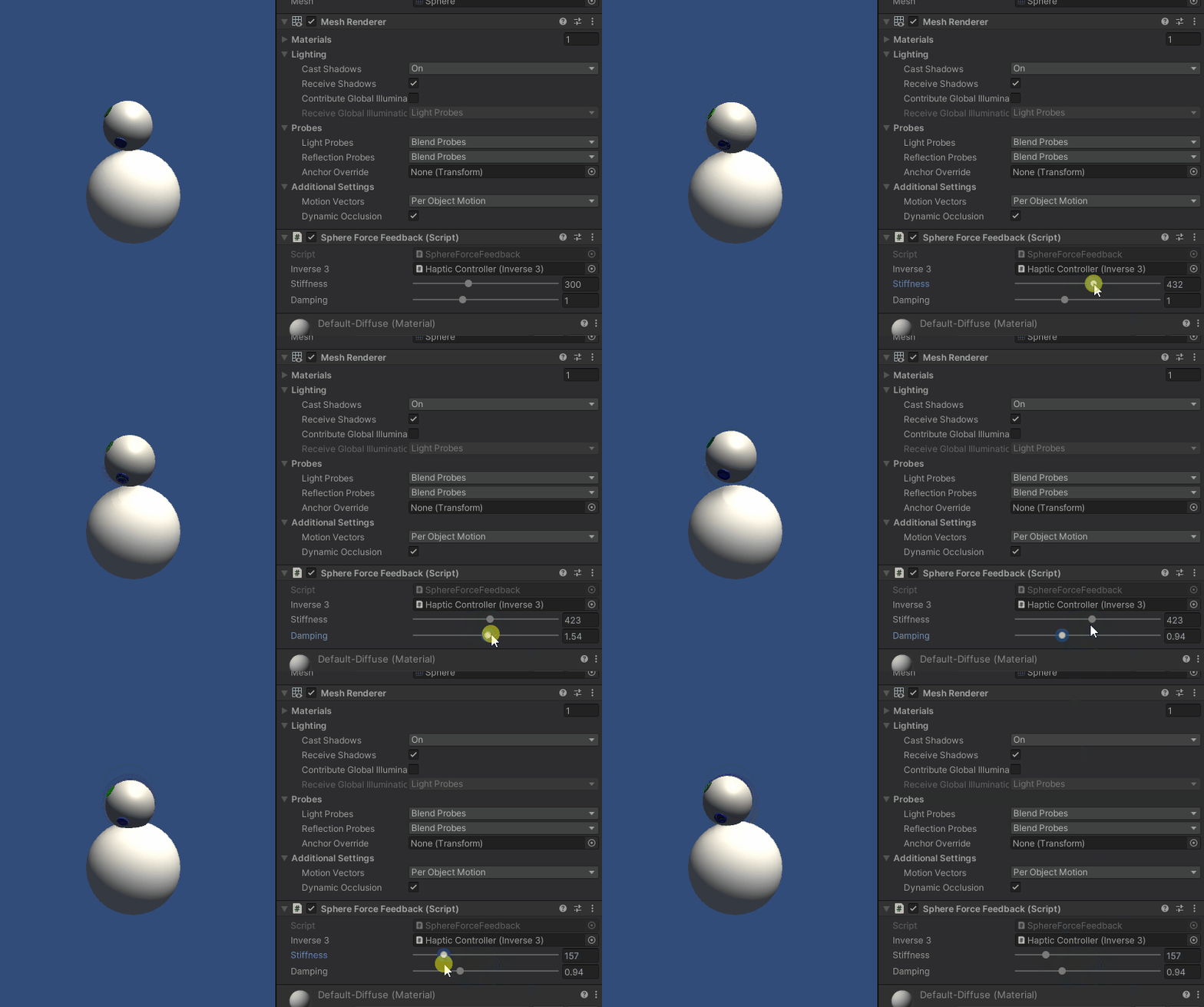
Inverse3 의 커서를 잡으면 재생 모드로 전환되며, 구체를 터치해 보세요. 구체의 존재감을 느낄 수 있을 것이며, Unity 인스펙터를 통해 강성과 감쇠 속성을 조정하여 가상 물체와 상호작용할 때 실제와 같은 촉감을 경험할 수 있습니다.
원본 파일
이 예제의 전체 시나리오와 모든 관련 파일은 Unity 패키지 관리자의 ‘Tutorials’ 예제에서 가져올 수 있습니다.
SphereForceFeedback.cs
/*
 * Copyright 2024 Haply Robotics Inc. All rights reserved.
 */

using Haply.Inverse.DeviceControllers;
using Haply.Inverse.DeviceData;
using UnityEngine;

namespace Haply.Samples.Tutorials._2_BasicForceFeedback
{
    public class SphereForceFeedback : MonoBehaviour
    {
        public Inverse3Controller inverse3;

        [Range(0, 800)]
        // Stiffness of the force feedback.
        public float stiffness = 300f;

        [Range(0, 3)]
        public float damping = 1f;

        private Vector3 _ballPosition;
        private float _ballRadius;
        private float _cursorRadius;

        /// <summary>
        /// Stores the cursor and sphere transform data for access by the haptic thread.
        /// </summary>
        private void SaveSceneData()
        {
            var t = transform;
            _ballPosition = t.position;
            _ballRadius = t.lossyScale.x / 2f;

            _cursorRadius = inverse3.Cursor.Radius;
        }

        /// <summary>
        /// Saves the initial scene data cache.
        /// </summary>
        private void Awake()
        {
            inverse3 ??= FindObjectOfType<Inverse3Controller>();
            inverse3.Ready.AddListener((device, args) => SaveSceneData());
        }

        /// <summary>
        /// Subscribes to the DeviceStateChanged event.
        /// </summary>
        private void OnEnable()
        {
            inverse3.DeviceStateChanged += OnDeviceStateChanged;
        }

        /// <summary>
        /// Unsubscribes from the DeviceStateChanged event.
        /// </summary>
        private void OnDisable()
        {
            inverse3.DeviceStateChanged -= OnDeviceStateChanged;
            inverse3.Release();
        }

        /// <summary>
        /// Calculates the force based on the cursor's position and another sphere position.
        /// </summary>
        /// <param name="cursorPosition">The position of the cursor.</param>
        /// <param name="cursorVelocity">The velocity of the cursor.</param>
        /// <param name="cursorRadius">The radius of the cursor.</param>
        /// <param name="otherPosition">The position of the other sphere (e.g., ball).</param>
        /// <param name="otherRadius">The radius of the other sphere.</param>
        /// <returns>The calculated force vector.</returns>
        private Vector3 ForceCalculation(Vector3 cursorPosition, Vector3 cursorVelocity, float cursorRadius,
            Vector3 otherPosition, float otherRadius)
        {
            var force = Vector3.zero;

            var distanceVector = cursorPosition - otherPosition;
            var distance = distanceVector.magnitude;
            var penetration = otherRadius + cursorRadius - distance;

            if (penetration > 0)
            {
                // Normalize the distance vector to get the direction of the force
                var normal = distanceVector.normalized;

                // Calculate the force based on penetration
                force = normal * penetration * stiffness;

                // Apply damping based on the cursor velocity
                force -= cursorVelocity * damping;
            }

            return force;
        }

        /// <summary>
        /// Event handler that calculates and send the force to the device when the cursor's position changes.
        /// </summary>
        /// <param name="sender">The Inverse3 data object.</param>
        /// <param name="args">The event arguments containing the device data.</param>
        private void OnDeviceStateChanged(object sender, Inverse3EventArgs args)
        {
            var inverse3 = args.DeviceController;
            // Calculate the ball force
            var force = ForceCalculation(inverse3.CursorLocalPosition, inverse3.CursorLocalVelocity,
                _cursorRadius, _ballPosition, _ballRadius);

            inverse3.SetCursorLocalForce(force);
        }
    }
}