위치 제어에 대한 간단한 튜토리얼
이 튜토리얼은 ‘ Inverse3 ’ 기기의 커서 위치를 Unity 씬 내의 동적 GameObject를 통해 제어하는 방법을 설명하며, ‘시작하기’ 가이드에서 다룬 개념을 바탕으로 합니다.
서론
Inverse3 장치는 두 가지 제어 모드를 지원합니다: 크래프트 제어 그리고 위치 제어.
힘 제어 방식은 커서 위치에 따라 힘을 조절하는 반면, 위치 제어 방식은 커서 위치를 직접 제어합니다.
이 튜토리얼에서는 다음의 장면 설정을 사용합니다. 동적 장면에서 포스 피드백에 대한 튜토리얼 그리고 다음의 사용에 중점을 두고 있습니다. CursorSetPosition 메서드 내에서 FixedUpdate, 기기의 커서가 움직이는 GameObject를 따라가도록 하기 위해.
장면 설정
다음에서 장면 구성을 시작하세요. 동적 장면에서 포스 피드백에 대한 튜토리얼, 그 중 햅틱 리그 그리고 GameObject 하나 움직이는 공 ...를 포함하며, 이는 다음 구성 요소를 통해 MovableObject 제어된다.
SpherePositionControl 컴포넌트의 구현
부품을 교체하십시오 SphereForceFeedback am GameObject 움직이는 공 "라는 이름의 새로운 C# 스크립트를 통해 SpherePositionControl.cs.
클래스에서 다음을 정의하십시오. SpherePositionControl 다음과 같은 특성:
public Inverse3 inverse3;
public float minSyncDistance = 0.05f;
private bool _isCursorSynchronized;
- inverse3: 인스펙터에서 설정되는 ‘ Inverse3 ’ 장치의 구성 요소에 대한 참조입니다.
- minSyncDistance: 커서 동기화가 시작되는 최소 거리.
- _isCursorSynchronized: 커서의 움직임이 무빙 볼과 동기화되어 있는지 여부를 나타내는 플래그입니다.
동기화 로직
움직이는 공과의 거리에 따라 커서 동기화를 시작하고 중지하는 메서드를 구현하십시오:
private void StartSynchronizeCursor()
{
    var cursorPosition = inverse3.Cursor.transform.position;
    GetComponent<MovableObject>().SetTargetPosition(cursorPosition, teleport: true);
    _isCursorSynchronized = true;
}

private void StopSynchronizeCursor()
{
    _isCursorSynchronized = !inverse3.Release();
}
여기서는
MovableObject.SetTargetPosition(position, teleport:true)사용되어, 그 결과 무빙볼 커서 위치로 순간 이동됩니다.
Methoden Update 및 FixedUpdate
메서드 내에서 다음을 수행하십시오. Update 커서와 움직이는 공 음:
private void Update()
{
    var distance = Vector3.Distance(inverse3.CursorPosition, transform.position);
    if (!_isCursorSynchronized && distance <= minSyncDistance)
    {
        StartSynchronizeCursor();
    }
    else if (_isCursorSynchronized && distance > minSyncDistance)
    {
        StopSynchronizeCursor();
    }
}
다음에서 업데이트하세요 FixedUpdate 커서의 위치를 다음과 같이 설정하여 움직이는 공 동기화가 활성화된 경우, 다음을 의미합니다:
private void FixedUpdate()
{
    if (_isCursorSynchronized)
    {
        inverse3.SetCursorPosition(transform.position);
    }
}
FixedUpdate 메서드를 사용하면 그래픽 렌더링 성능에 관계없이 위치 제어 기능이 안정적인 프레임 속도로 실행됩니다.
초기화
다음에 입력하세요 Awake() 확실히, 그 움직이는 공 Inverse3 기기가 접근할 수 있는 위치에서 시작하며, 기기의 손잡이 방향과 관계없이:
private void Awake()
{
    inverse3.Ready.AddListener(device =>
    {
        GetComponent<MovableObject>().SetTargetPosition(((Inverse3)device).WorkspaceCenterLocalPosition, teleport: true);
    });
}
게임 체험
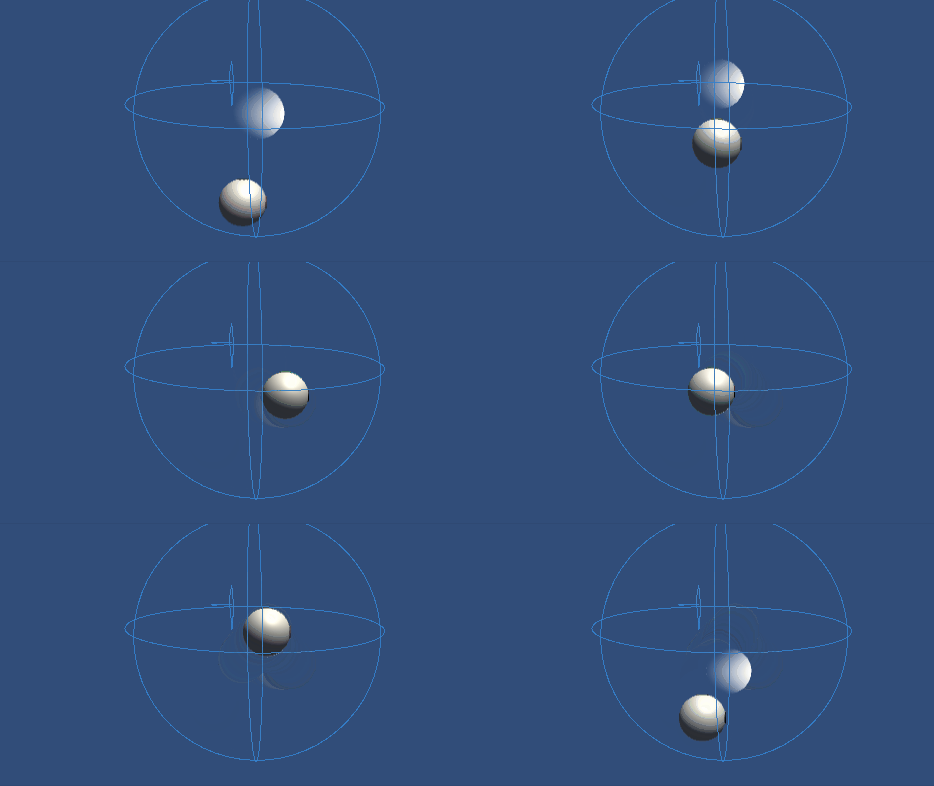
Inverse3 장치를 고정하고 충분한 공간을 확보하십시오. 플레이 모드를 활성화하고 커서로 Moving Ball에 접근하면, Inverse3 장치가 Moving Ball의 움직임을 따라갑니다. 키보드 입력을 통해 Moving Ball을 움직일 수 있으며, 이를 통해 커서가 그 위치를 추적하는 기능을 확인할 수 있습니다.
원본 파일
이 튜토리얼에 포함된 전체 장면과 관련 파일은 예제에서 확인하실 수 있습니다. 튜토리얼 저는 Unity의 패키지 관리자입니다.
여기에는 스크립트가 포함됩니다. MovableObject, 이는 여러 예제에서 키보드 입력을 통해 GameObject의 움직임을 제어하는 데 사용됩니다.
SpherePositionControl.cs
/*
 * Copyright 2024 Haply Robotics Inc. All rights reserved.
 */

using Haply.Inverse.DeviceControllers;
using Haply.Samples.Tutorials.Utils;
using UnityEngine;

namespace Haply.Samples.Tutorials._5_SimplePositionControl
{
    /// <summary>
    /// Controls the Inverse3 cursor position based on the current position of this GameObject.
    /// When the GameObject is within a specified distance from the cursor, it initiates synchronized control,
    /// allowing the cursor to follow the GameObject's movements.
    /// </summary>
    [RequireComponent(typeof(MovableObject))]
    public class SpherePositionControl : MonoBehaviour
    {
        public Inverse3Controller inverse3;

        [Tooltip("Minimum distance required to initiate synchronized control between this GameObject and the Inverse3 cursor.")]
        [Range(0, 1)]
        public float minSyncDistance = 0.05f;

        private bool _isCursorSynchronized;

        private void Awake()
        {
            // Ensure inverse3 is set, finding it in the scene if necessary.
            inverse3 ??= FindFirstObjectByType<Inverse3Controller>();

            // When inverse3 is ready, so the handedness is defined
            inverse3.Ready.AddListener((device, args) =>
            {
                // Teleport the sphere to its workspace center to ensure it can be reached,
                // regardless of whether the device is left or right-handed. This ensures the GameObject starts in a
                // position that is accessible by the Inverse3 device.
                GetComponent<MovableObject>().SetTargetPosition(device.WorkspaceCenterLocalPosition, teleport:true);
            });
        }

        private void OnDisable()
        {
            // Ensure movement synchronization is disabled when the component is disabled.
            StopSynchronizeCursor();
            inverse3.Release();
        }

        private void Update()
        {
            if (!inverse3.IsReady)
            {
                return;
            }
            // Calculate the distance between the Inverse3 position and this object's position.
            var distance = Vector3.Distance(inverse3.CursorPosition, transform.position);

            // Enable synchronized movement if within the minimum sync distance and not already synced.
            if (!_isCursorSynchronized && distance <= minSyncDistance)
            {
                StartSynchronizeCursor();
            }
            // Disable synchronized movement if outside the minimum sync distance and currently synced.
            else if (_isCursorSynchronized && distance > minSyncDistance)
            {
                StopSynchronizeCursor();
            }
        }

        private void FixedUpdate()
        {
            if (_isCursorSynchronized)
            {
                // If in sync, set the Inverse3 cursor position to this object's position.
                inverse3.SetCursorPosition(transform.position);
            }
            else
            {
                inverse3.ProbeCursorPosition(true);
            }
        }

        private void StartSynchronizeCursor()
        {
            // Get the current cursor position.
            var cursorPosition = inverse3.Cursor.transform.position;

            // Teleport this object to the cursor position to avoid a sudden jump when position control starts.
            GetComponent<MovableObject>().SetTargetPosition(cursorPosition, teleport:true);

            // Start synchronizing the movement of this object with the cursor.
            _isCursorSynchronized = true;
        }

        private void StopSynchronizeCursor()
        {
            // Stop synchronizing the movement.
            _isCursorSynchronized = !inverse3.Release();
        }
    }
}