힘 피드백에 대한 기초 튜토리얼
이 튜토리얼은 구와 같은 정적 물체와의 접촉 시 나타나는 물리적 특성을 시뮬레이션하기 위해, 강성과 감쇠를 모두 통합한 기본적인 햅틱 시뮬레이션을 만드는 방법을 안내합니다. 이 튜토리얼을 마치면, 구체의 존재감을 느낄 수 있고 다양한 햅틱 실험에 맞춰 강성과 감쇠 특성을 조정할 수 있는 시뮬레이션을 완성하게 됩니다.
소개
이 튜토리얼의 주요 과제는 강성과 감쇠 특성을 모두 지닌 구체와의 접촉으로 인해 발생하는 합력을 계산할 수 있는 함수를 개발하는 것입니다. 이러한 맥락에서 강성은 스프링과 같은 역할을 합니다. 즉, 물체가 압축될수록 더 큰 힘을 발생시킵니다. 반면 감쇠는 물체의 움직임에 대한 저항을 나타내며, 물체가 빠르게 이동할수록 더 큰 저항을 가합니다.
장면 설정
먼저 다음 문서에 설명된 대로 Haptic Rig를 설정하십시오. 가이드: 시작하기, 다음의 위치, 회전 및 크기가 햅틱 오리진 각각 다음으로 정의되도록 (0, 0, 0) et (1, 1, 1).
그런 다음 이름이 Sphere 다음과 같은 특성을 갖습니다:
- 위치 :
(0, 0, -0.1)(카메라에서 약 10cm 앞) - 척도:
(0.2, 0.2, 0.2)(지름 20 cm의 구에 해당함)
강제 복귀 스크립트
GameObject에 새로운 C# 스크립트를 추가하세요 구체 임명된 SphereForceFeedback.cs.
이 스크립트는 강성과 감쇠를 모두 고려하여, 커서 Inverse3 가 구체와 접촉할 때 가해지는 힘을 계산합니다.
다음 속성으로 스크립트를 초기화하십시오:
[SerializeField]
private Inverse3 inverse3;

[Range(0, 800)]
public float stiffness = 300f;
[Range(0, 3)]
public float damping = 1f;

private Vector3 _ballPosition;
private float _ballRadius;
private float _cursorRadius;
힘의 계산은 커서가 구체를 관통할 때에만 이루어져야 하며, 이는 정의된 강성과 감쇠 특성을 지닌 물리적 물체를 만지는 느낌을 시뮬레이션하기 위함입니다.
이 방법 ForceCalculation 이 작업은 커서의 위치와 속도를 모두 고려하여 수행할 것입니다:
private Vector3 ForceCalculation(Vector3 cursorPosition, Vector3 cursorVelocity, float cursorRadius,
    Vector3 otherPosition, float otherRadius)
{
    var force = Vector3.zero;

    var distanceVector = cursorPosition - otherPosition;
    var distance = distanceVector.magnitude;
    var penetration = otherRadius + cursorRadius - distance;

    if (penetration > 0)
    {
        // Normalize the distance vector to get the direction of the force
        var normal = distanceVector.normalized;

        // Calculate the force based on penetration
        force = normal * penetration * stiffness;

        // Apply damping based on the cursor velocity
        force -= cursorVelocity * damping;
    }

    return force;
}

private void OnDeviceStateChanged(object sender, Inverse3EventArgs args)
{
    var inverse3 = args.DeviceController;
    // Calculate the ball force
    var force = ForceCalculation(inverse3.CursorLocalPosition, inverse3.CursorLocalVelocity,
        _cursorRadius, _ballPosition, _ballRadius);

    inverse3.SetCursorLocalForce(force);
}
이 방법에서 Awake, 초기화하세요 _ballPosition, _ballRadius et _cursorRadius 씬 데이터를 설정하려면:
private void SaveSceneData()
{
    var t = transform;
    _ballPosition = t.position;
    _ballRadius = t.lossyScale.x / 2f;

    _cursorRadius = inverse3.Cursor.Radius;
}

private void Awake()
{
    SaveSceneData();
}
알림 등록 및 해제를 꼭 해 주시기 바랍니다. OnDeviceStateChanged 방법론에서 OnEnable et OnDisable, 각각 상호작용 중 힘의 반작용을 올바르게 처리하기 위해:
protected void OnEnable()
{
    inverse3.DeviceStateChanged += OnDeviceStateChanged;
}

protected void OnDisable()
{
    inverse3.DeviceStateChanged -= OnDeviceStateChanged;
}
게임 플레이
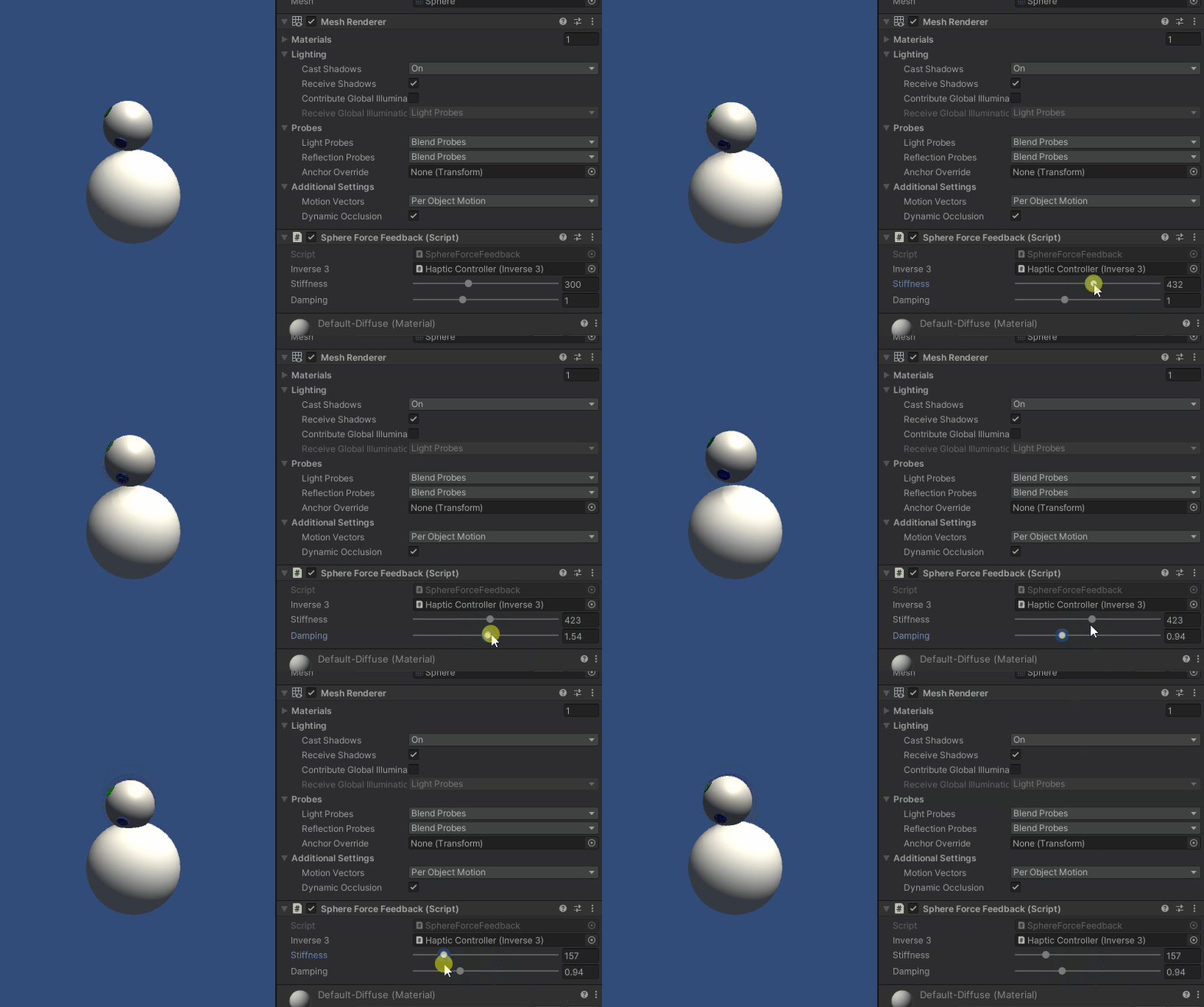
Inverse3 의 커서를 누른 채로 플레이 모드로 전환한 다음, 구체를 터치해 보세요. 구체의 존재감을 느낄 수 있을 것이며, Unity의 인스펙터를 통해 강성과 감쇠 특성을 조정할 수 있어, 가상 물체와 상호작용하는 생생한 느낌을 경험할 수 있습니다.
소스 파일
이 예제와 관련된 전체 씬 및 모든 관련 파일은 Unity 패키지 관리자의 ‘Tutorials’ 예제에서 가져올 수 있습니다.
SphereForceFeedback.cs
/*
 * Copyright 2024 Haply Robotics Inc. All rights reserved.
 */

using Haply.Inverse.DeviceControllers;
using Haply.Inverse.DeviceData;
using UnityEngine;

namespace Haply.Samples.Tutorials._2_BasicForceFeedback
{
    public class SphereForceFeedback : MonoBehaviour
    {
        public Inverse3Controller inverse3;

        [Range(0, 800)]
        // Stiffness of the force feedback.
        public float stiffness = 300f;

        [Range(0, 3)]
        public float damping = 1f;

        private Vector3 _ballPosition;
        private float _ballRadius;
        private float _cursorRadius;

        /// <summary>
        /// Stores the cursor and sphere transform data for access by the haptic thread.
        /// </summary>
        private void SaveSceneData()
        {
            var t = transform;
            _ballPosition = t.position;
            _ballRadius = t.lossyScale.x / 2f;

            _cursorRadius = inverse3.Cursor.Radius;
        }

        /// <summary>
        /// Saves the initial scene data cache.
        /// </summary>
        private void Awake()
        {
            inverse3 ??= FindObjectOfType<Inverse3Controller>();
            inverse3.Ready.AddListener((device, args) => SaveSceneData());
        }

        /// <summary>
        /// Subscribes to the DeviceStateChanged event.
        /// </summary>
        private void OnEnable()
        {
            inverse3.DeviceStateChanged += OnDeviceStateChanged;
        }

        /// <summary>
        /// Unsubscribes from the DeviceStateChanged event.
        /// </summary>
        private void OnDisable()
        {
            inverse3.DeviceStateChanged -= OnDeviceStateChanged;
            inverse3.Release();
        }

        /// <summary>
        /// Calculates the force based on the cursor's position and another sphere position.
        /// </summary>
        /// <param name="cursorPosition">The position of the cursor.</param>
        /// <param name="cursorVelocity">The velocity of the cursor.</param>
        /// <param name="cursorRadius">The radius of the cursor.</param>
        /// <param name="otherPosition">The position of the other sphere (e.g., ball).</param>
        /// <param name="otherRadius">The radius of the other sphere.</param>
        /// <returns>The calculated force vector.</returns>
        private Vector3 ForceCalculation(Vector3 cursorPosition, Vector3 cursorVelocity, float cursorRadius,
            Vector3 otherPosition, float otherRadius)
        {
            var force = Vector3.zero;

            var distanceVector = cursorPosition - otherPosition;
            var distance = distanceVector.magnitude;
            var penetration = otherRadius + cursorRadius - distance;

            if (penetration > 0)
            {
                // Normalize the distance vector to get the direction of the force
                var normal = distanceVector.normalized;

                // Calculate the force based on penetration
                force = normal * penetration * stiffness;

                // Apply damping based on the cursor velocity
                force -= cursorVelocity * damping;
            }

            return force;
        }

        /// <summary>
        /// Event handler that calculates and send the force to the device when the cursor's position changes.
        /// </summary>
        /// <param name="sender">The Inverse3 data object.</param>
        /// <param name="args">The event arguments containing the device data.</param>
        private void OnDeviceStateChanged(object sender, Inverse3EventArgs args)
        {
            var inverse3 = args.DeviceController;
            // Calculate the ball force
            var force = ForceCalculation(inverse3.CursorLocalPosition, inverse3.CursorLocalVelocity,
                _cursorRadius, _ballPosition, _ballRadius);

            inverse3.SetCursorLocalForce(force);
        }
    }
}